

Envertech Solar connects Home Assistant to the Envertech Solar Portal. The integration queries the portal for your station and turns the values into regular Home Assistant sensors – perfect for gauges, history graphs and the Energy Dashboard. It is built for Envertech ECO/SE inverters such as the 2000SE.
✨ Features
- ☀️ Current solar power in real time
- 🔋 Daily, monthly, yearly and lifetime energy
- ⚡ Daily peak and all-time peak power
- 💶 Feed-in income and CO₂ savings, if configured in the portal
- 🔁 Adjustable update interval directly in Home Assistant
- 🌍 Translated user interface (the repository ships English, German, Dutch, Polish, Portuguese, Russian, Chinese, Spanish, French and Italian)
- 🧩 Installable via HACS, set up entirely in the UI
📋 Requirements
- Home Assistant 2024.6.0 or newer
- An Envertech inverter (ECO/SE series, e.g. 2000SE) that reports to the Envertech Solar Portal
- The station ID of your system (see Configuration)
- Internet access for Home Assistant – the data comes from the Envertech cloud
- HACS for the recommended installation method
📦 Installation
HACS (recommended)
- Open HACS → Integrations.
- Search for Envertech Solar and install the integration.
- Restart Home Assistant.
- Go to Settings → Devices & services → Add integration.
- Search for Envertech Solar and enter your station ID.
Manual installation
- Download or clone the repository.
- Copy
custom_components/envertech_solarintoconfig/custom_components/of your Home Assistant installation. - Restart Home Assistant and set up the integration as described above.
For example, from a shell on the Home Assistant host (adjust /config if your configuration directory lives elsewhere):
git clone https://github.com/jimmybonesde/envertech_solar.git
mkdir -p /config/custom_components
cp -r envertech_solar/custom_components/envertech_solar /config/custom_components/
⚙️ Configuration
The integration only needs the station ID of your system. After setup you can change the update interval via Settings → Devices & services → Envertech Solar → ⚙️ Configure.
| Option | Default | Allowed values |
|---|---|---|
| Station ID | – | ID from the Envertech portal URL (required) |
| Update interval | 30 seconds | 10 – 3,600 seconds |
Where do I find my station ID?
- Open the Envertech Solar Portal.
- Click on one of your solar panels.
- The URL now contains a value after
/systemhistory/and before?sn=– that is your station ID:
https://www.envertecportal.com/terminal/systemhistory/03GFF6E15154525DA16901EC7A4541G1?sn=3014511
                                                     └──────── Station ID ────────┘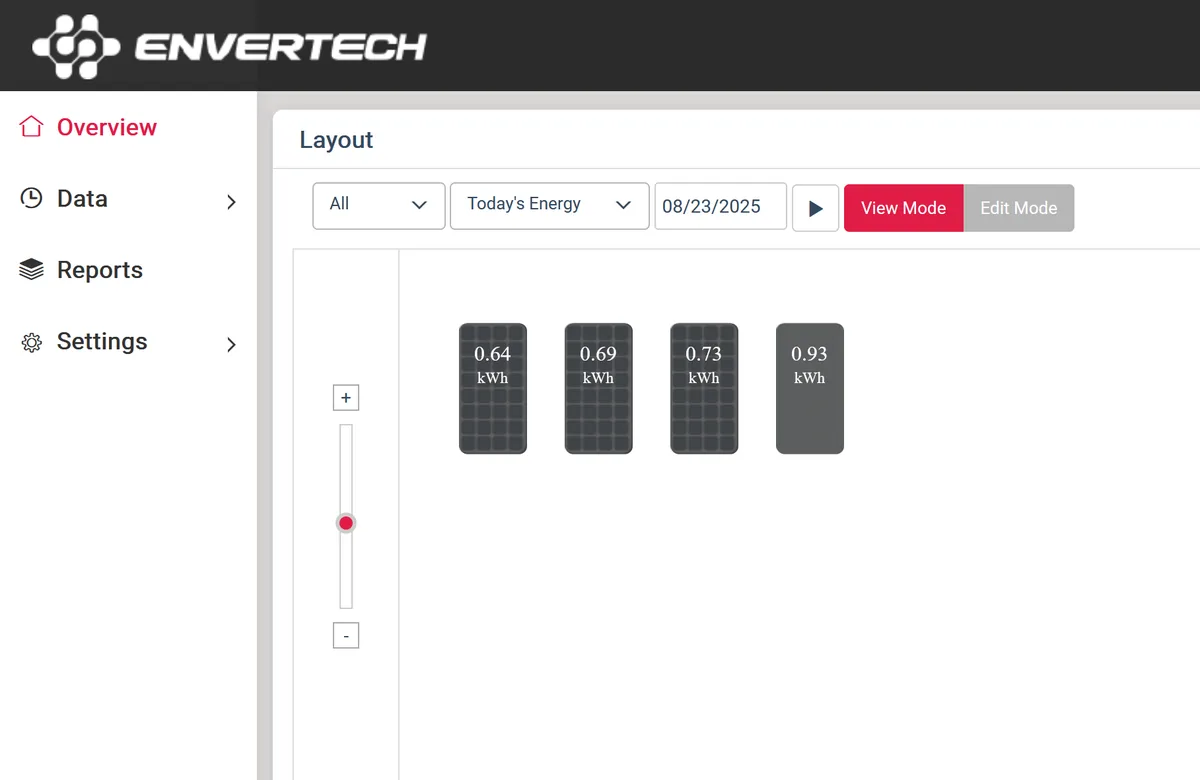
📊 Sensors
All sensors belong to one service device called Envertech Solar Station.
| Sensor | Portal value | Unit | Description |
|---|---|---|---|
| ☀️ Current Power | Power | W | Current solar output |
| ⚡ Daily Peak Power | calculated | W | Highest power measured today |
| 🏆 All-Time Peak Power | StrPeakPower | W / kW | Highest power value reported by the portal, shown as delivered (e.g. 1.44 kW) |
| 📐 Capacity | UnitCapacity | kWp | Installed system capacity |
| 🔋 Daily Energy | UnitEToday | kWh | Energy produced today |
| 🗓️ Monthly Energy | UnitEMonth | kWh | Energy produced this month |
| 📆 Yearly Energy | UnitEYear | kWh | Energy produced this year |
| ♾️ Total Energy | UnitETotal | kWh | Yield since commissioning |
| 🔌 Inverter Model | InvModel1 | – | Inverter model reported by the portal |
| 💶 Income | StrIncome | EUR / PLN | Feed-in income, if maintained in the portal |
| 🌱 Carbon Offset | StrCO2 | t | CO₂ savings calculated by the portal |
| 📍 Start Date | CreateTime | – | Commissioning date of the system |
The Daily Peak Power sensor is calculated by the integration itself: it keeps the time of the peak in a peak_time attribute, resets at midnight and restores its value after a Home Assistant restart. The energy sensors are especially useful for history graphs and the Home Assistant Energy Dashboard.
🖼️ Dashboard example
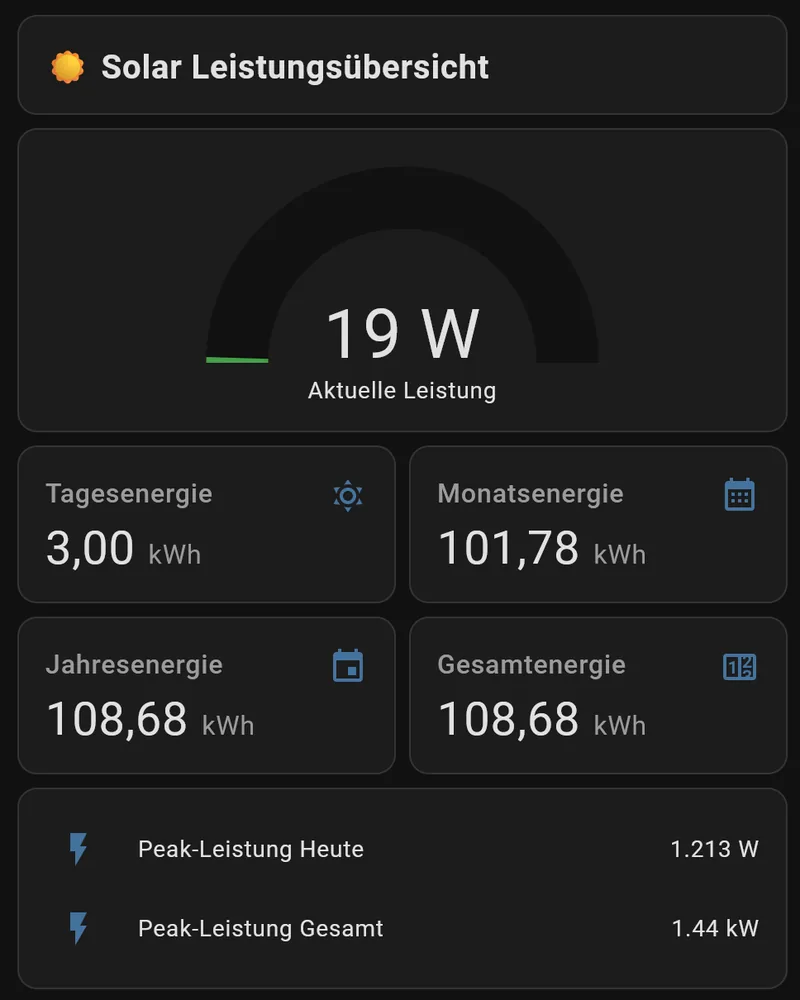
For a tidy overview, these cards work well:
- Gauge cards for the current power
- Entities cards for daily, monthly and yearly energy
- Grid or vertical stack cards for a compact system overview
❓ Troubleshooting & FAQ
The integration does not show up in HACS
Update HACS and search again for Envertech Solar. The repository must be publicly reachable.
The station ID is invalid
Make sure you copied exactly the part between /systemhistory/ and ?sn= from the portal URL.
Sensors show unknown
Check that the inverter is online and delivers data to the Envertech Solar Portal. Then look at the Home Assistant logs for error messages.
Values update too slowly or too quickly
Adjust the update interval via Settings → Devices & services → Envertech Solar → ⚙️ Configure.
🤝 Contributing & license
Bug reports and suggestions are welcome – open an issue or a pull request, and star the repository if it helps you. The integration is released under the MIT License.
Envertech Solar on GitHub
Source code, releases, issues and the full README.